Reading was only part of it
After collecting all the data you need, the next step is to write the post-calculation results back to the cube. To do this, you will use DataGridBuilder.
Imagine we have an annual volume and a seasonality curve, and we want to spread that annual volume across the twelve months based on the seasonality percentages and save the results back to the cube.
Since we’ve already covered how to collect data from the cube, we will focus specifically on writing data back to the cube. For simplicity, we’ll create a Map variable in Groovy containing the seasonality percentages. In a real-world scenario, you would typically retrieve the seasonality data using FlexibleDataGridDefinitionBuilder.
Let’s take a look at the code.
Cube cube = operation.application.getCube("Plan1")//Seasonality by monthMap<String,Double> seasonality = ['Jan':0.10,'Feb':0.08,'Mar':0.09,'Apr':0.08, 'May':0.08,'Jun':0.07,'Jul':0.07,'Aug':0.07, 'Sep':0.08,'Oct':0.09,'Nov':0.09,'Dec':0.10]//Annual volume for the yeardouble annualVolume = 12000List<String> months = seasonality.keySet() as List
Now, apply the seasonality by month.
//Spread the annual volume across the monthsList<Double> monthly = months.collect { String m -> annualVolume * seasonality[m] }
Once you have the monthly data in a list, we are ready to write the data back to the cube.
//define the write builder - it needs a date formatDataGridBuilder builder = cube.dataGridBuilder("MM/DD/YYYY")//Set POVbuilder.addPov('Plan','Working','No Entity','FY27','Calculated')//Set Columnsbuilder.addColumn(months as String[])//Set Rowsbuilder.addRow(['Demand by Seasonality'], monthly)
We are keeping addColumn and addRow simple. Lastly, we need to build the grid and save the data back to the cube.
//Build the grid and capture the resultDataGridBuilder.Status status = new DataGridBuilder.Status()builder.build(status).withCloseable { DataGrid grid -> println "Accepted : ${status.numAcceptedCells}" println "Rejected : ${status.numRejectedCells}" //Only save if nothing was rejected if (status.numRejectedCells > 0) { println "Rejected cells: ${status.cellsRejected}" throwVetoException("Write rejected ${status.numRejectedCells} cells. Nothing was saved.") } //Always remember to save the grid cube.saveGrid(grid)}
The saveGrid command… You have no idea how many times I missed this when I was first learning Groovy.
If you don’t include the saveGrid command, the grid won’t actually be saved… just like making changes to a form without saving it.
Below is the full script.
Cube cube = operation.application.getCube("Plan1")//Seasonality by monthMap<String,Double> seasonality = ['Jan':0.10,'Feb':0.08,'Mar':0.09,'Apr':0.08, 'May':0.08,'Jun':0.07,'Jul':0.07,'Aug':0.07, 'Sep':0.08,'Oct':0.09,'Nov':0.09,'Dec':0.10]//Annual volume for the yeardouble annualVolume = 12000List<String> months = seasonality.keySet() as List//Spread the annual volume across the monthsList<Double> monthly = months.collect { String m -> annualVolume * seasonality[m] }//define the write builder - it needs a date formatDataGridBuilder builder = cube.dataGridBuilder("MM/DD/YYYY")//Set POVbuilder.addPov('Plan','Working','No Entity','FY27','Calculated')//Set Columnsbuilder.addColumn(months as String[])//Set Rowsbuilder.addRow(['Demand by Seasonality'], monthly)//Build the grid and capture the resultDataGridBuilder.Status status = new DataGridBuilder.Status()builder.build(status).withCloseable { DataGrid grid -> println "Accepted : ${status.numAcceptedCells}" println "Rejected : ${status.numRejectedCells}" if (status.numRejectedCells > 0) { println "Rejected cells: ${status.cellsRejected}" throwVetoException("Write rejected ${status.numRejectedCells} cells. Nothing was saved.") } //Always remember to save the grid cube.saveGrid(grid)}
It’s really not that different from FlexibleDataGridDefinitionBuilder. The key difference is that DataGridBuilder is used to write data back to the cube in Groovy.
More importantly, DO NOT forget to use saveGrid. Otherwise, your data won’t actually be written back to the cube.
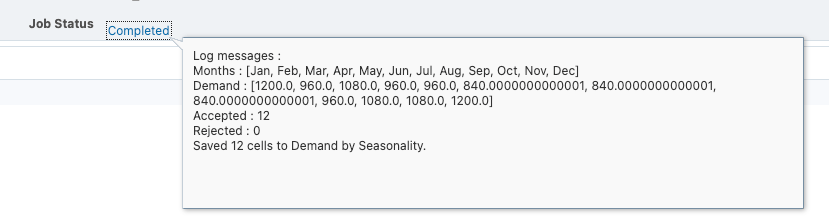
Here is the result and the Job Status.



Leave a Reply